A downloadable RPG Maker Plugin

Download NowName your own price

Introduction

If you have ever made cutscenes in RPG Maker, you probably see how this can be tedious when mixing actions and dialogues in an event.

This plugin aims to make it a lot easy!

You can play music, show balloons, change switches, and much more using escape codes inside the message/scrolling text window!


Features

  • Add new escape codes that can:
    • Draw images from any img folder!
    • Change switches, self-switches, and variables.
    • Play common event
    • Show animations, balloon
    • Scroll, fade(in and out), tint, shake, and flash the map!
    • Change weather
    • Play BGM, BGS, ME, SE
    • Change the font to bold or italic
    • Change font outline color and width
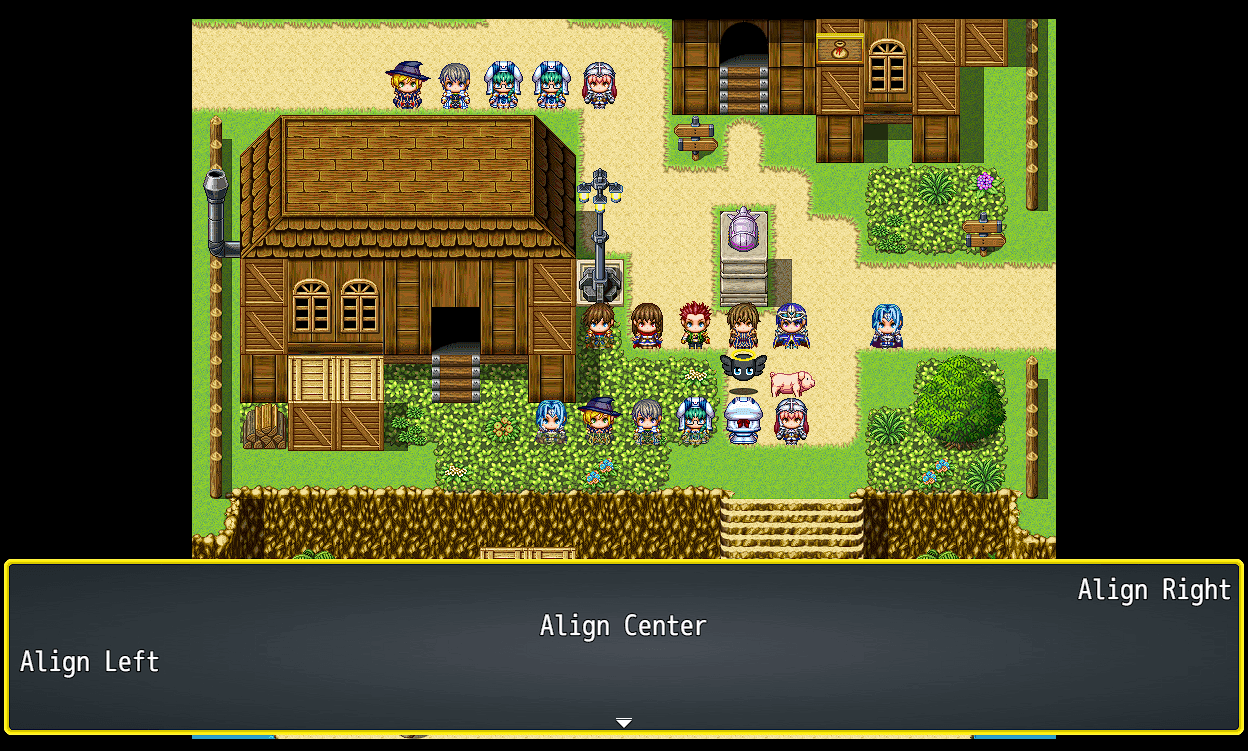
    • Align Left | Center | Right
    • Change the face image/index of the message window
    • Change font face (Eli FontManager or Eli BitmapFontPro)


Works almost on every window, including scroll text!


General Codes

Designed to work on any window.

TXT

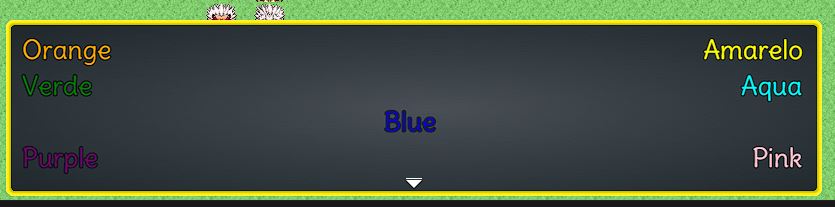
  • Color Parameters → Accept HTML colors(red, blue, green...) or Hex(#ffffff) or window colors(0, 1, 2...)
  • True/False → Means that you need to use the following pattern for that kind of escape code: \EscapeCode[true] your text here \EscapeCode[false]
  • \ALIGN[alignType] → Change the text-align to: Left | Center | Right. If you use any other escape code that changes the size or position of the text, it is recommendable that you use the Align code after them.
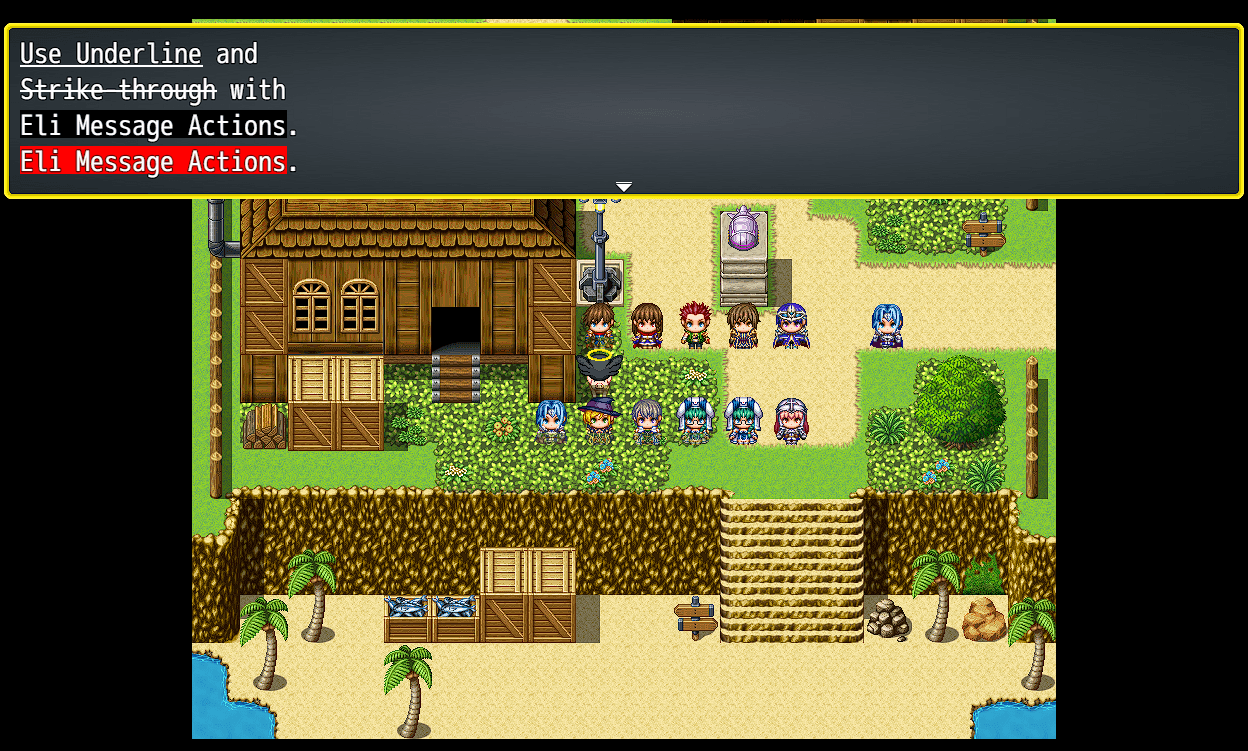
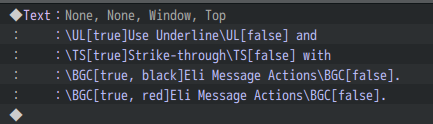
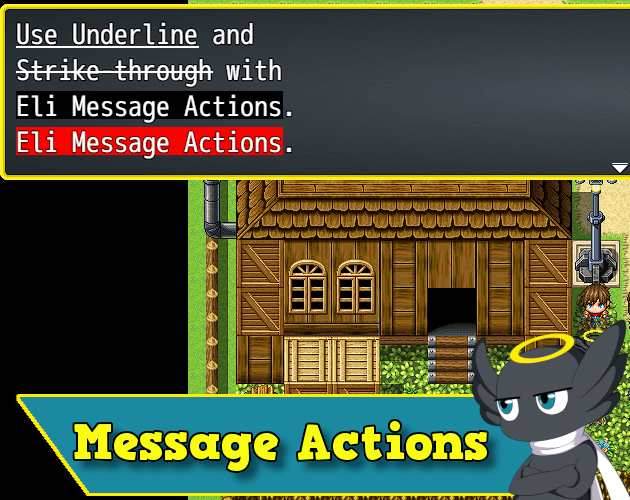
  • \UL[true/false] → Draw an underline below the text. 
  • \TS[true/false] → Draw a strikethrough in the text. 
  • \BGC[true/false, color] → Paint the text background. 
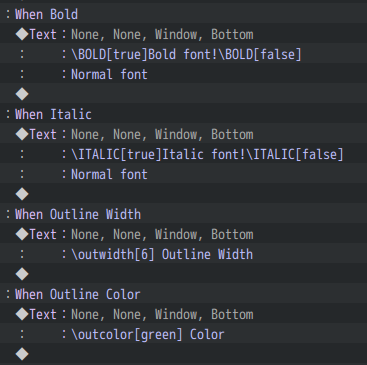
  • \BOLD[true/false] → Will make the font BOLD. 
  • \ITALIC[true/false] → Will make the font ITALIC. 
  • \COLOR[color] → Change color text using HTML, hex, or window colors.
  • \OUTCOLOR[color] → Change the font outline color. Leave empty for default.
  • \OUTWIDTH[size] → Change the font outline width. Leave empty for default.

Sound

You can omit volume, pitch, and pan and they will take default values:

  • Volume → The volume will be the one set on the options menu
  • Pitch → 100
  • Pan → 0
  • Name → Cannot have spaces. They are case-sensitive.
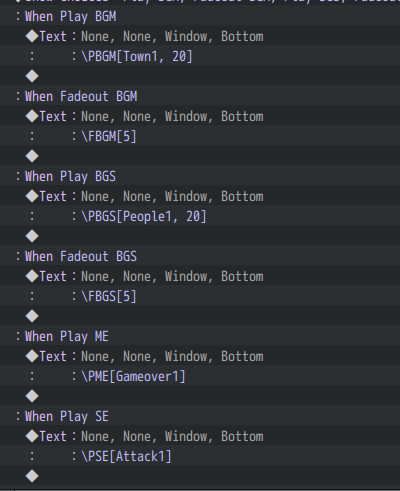
  • \PBGM[name, volume, pitch, pan] → Play Bgm
  • \FBGM[duration] → Fade out the current bgm
  • \PBGS[name, volume, pitch, pan] → Play Bgs
  • \FBGS[duration] → Fade out the current bgs
  • \PME[name, volume, pitch, pan] → Play Me
  • \PSE[name, volume, pitch, pan] → Play Se

Eventing

Direction → Replace with numbers(2, 4, 6, 8)

In/out → Replace with Out or In. Not case sensitive.

WeatherType → Replace type with rain | snow | storm | none

  • \CSW[SwitchId, value] → Change value to true or false.
  • \CSSW[mapId, eventId, switchId, value] → If map Id or event Id is equal to 0, it will select the current map/event. If you omit the value, it will be considered false.
  • \CVAR[varId, operator, value] → Operator can be any of these = + / * %

Map Only

  • \PCE[commonEventId] → Play a common event
  • \SBI[eventId, balloonId] → Show a balloon icon
  • \SAN[eventId, animationId] → Show an animation
  • \SCROLL[direction, distance, speed] → Scroll the map.
  • \FADE[in/out, duration] → If the duration is omitted, it will be 24.
  • \TINT[r, g, b, gray, duration] → Tint the screen
  • \FLASH[r, g, b, intensity, duration] → Flash the screen
  • \SHAKE[power, speed, duration] → Shake the screen
  • \WEATHER[weatherType, power, duration] → Change the weather

Advanced

  • \SCRIPT[formula] → This will evaluate a valid javascript formula.
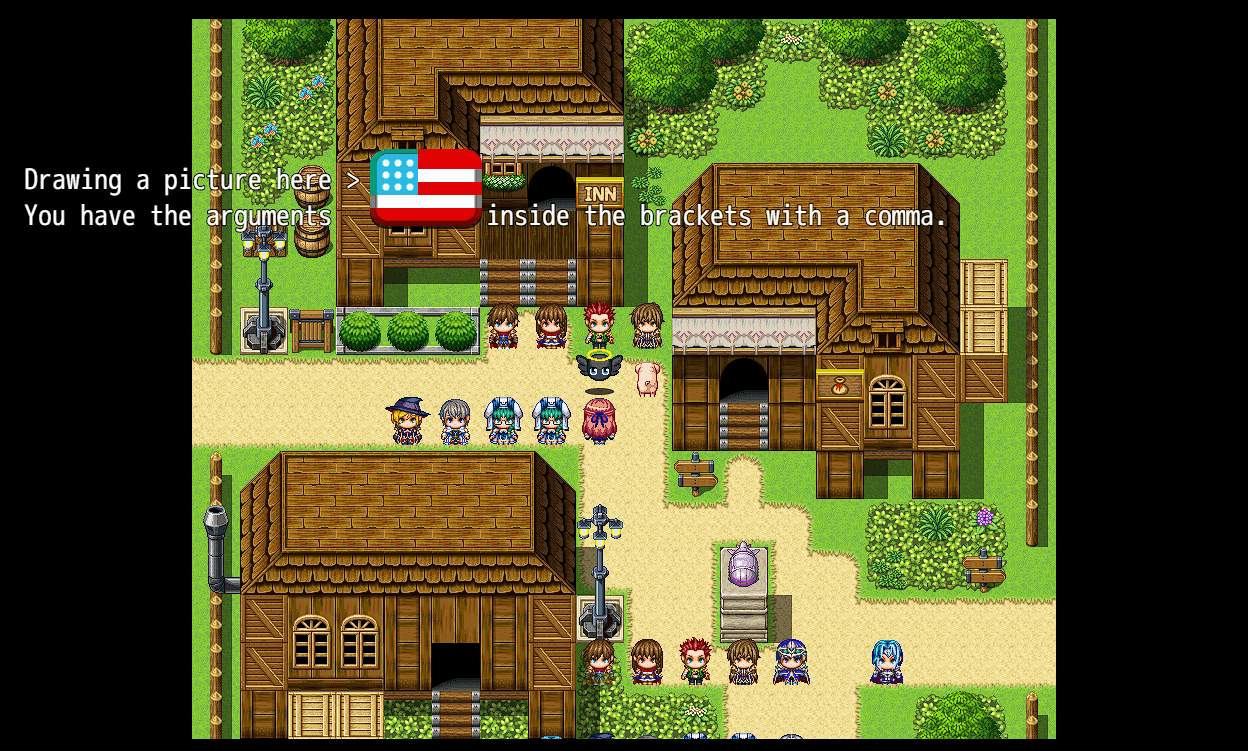
  • \DrawImg[width, height, folder, fileName, keepRatio, center] → Folder and Filename are case sensitive. Replace KeepRatio and Center with true or false. If omitted, by default keepRatio is true and the center is false.
    • You can now optionally insert the width and height of the picture into the escape code arguments. Do that if you experience some text misplacements when using this escape code. In fact, I would advise to always manually insert the size of the picture into the arguments. But in case you don’t want to, you can also keep starting with the folder, filename, keepRatio, center.

Font Plugins

To be used by Eli Font Manager or Eli Bitmap Font.

  • \FNT[FontFace/Index] → Replace FontFace with one of the font faces set on the plugin parameters. Or use the index number.

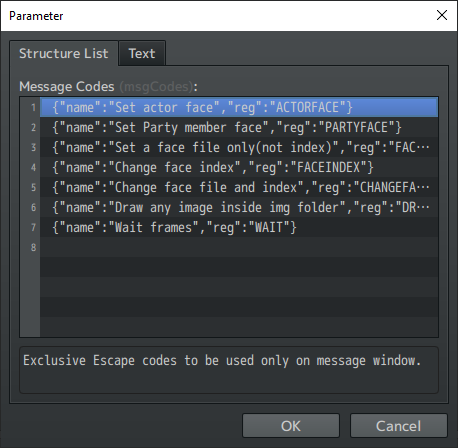
Message Codes

Made to be used by Message and Scroll text window

Face

  • \ACTORFACE[actorId] → Change the message face to the specified actor
  • \PARTYFACE[memberIndex] → Change the message face to the specified party member
  • \FACENAME[filename] → Change only the face message(not the message index)
  • \FACEINDEX[number] → Change only the Face
  • \CHANGEFACE[filename, index] → Change both the face file and face index of the message.

Other

  • \WAIT[frames] → Replace frames with a number of frames to make the message wait.

Scroll Text Window

  • \DrawImg[folder, fileName] → It is a little different from the other windows. You don't have the keep ratio and center arguments.

Extension Plugin Codes

  • \FNT[FontFace/Index] → Replace FontFace with one of the font faces set on the plugin parameters. Or use the index number. (Eli Font Manager or Eli Bitmap Font)
  • \CSE[Id/Index] → Changes the talk/message sound. If set to -1, it will disable. (Eli Message Sounds)


How to Use | Terms of use | Sample Project

StatusReleased
CategoryTool
Rating
Rated 5.0 out of 5 stars
(10 total ratings)
AuthorHakuen Studio
Made withRPG Maker
Tagsalignment, hakuen-studio, message, mz, No AI, plugins, RPG Maker, RPG Maker MZ, rpg-maker-plugin, text
Average sessionA few seconds
LanguagesEnglish
ContentNo generative AI was used

Download

Download NowName your own price

Click download now to get access to the following files:

MZ - Message Actions 2.1.6 10 kB
MZ - Message Actions 2.1.5 10 kB
MZ - Message Actions 2.1.4 9.7 kB

Development log

View all posts