A downloadable RPG Maker Plugin

Buy Now$8.00 USD or more

Introduction

Those who want to use pixel fonts, or even more detailed fonts can get a lot of trouble when aiming for the perfection of the font visuals.

Rpg Maker can blur and add an outline to your fonts. This plugin solves this problem, letting you use a bitmap font(a .png file) like a sprite sheet, which lets your fonts be rendered more faithful.


Features

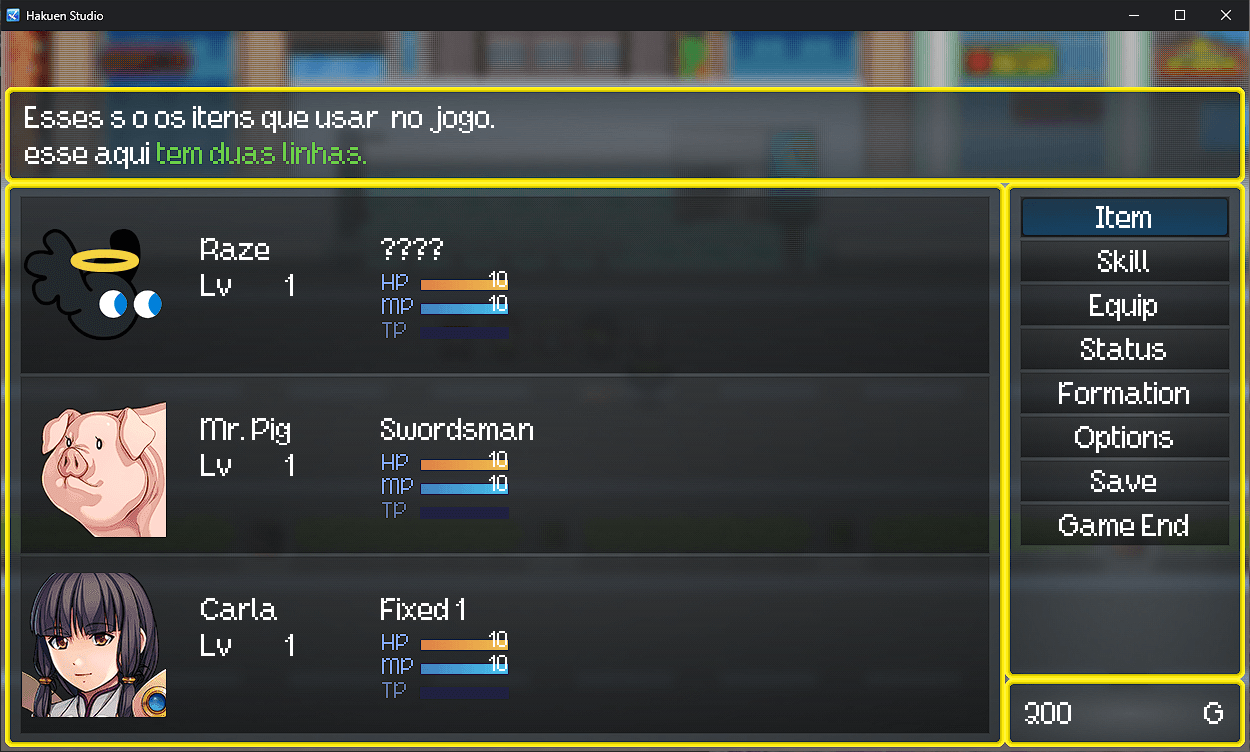
  • Add bitmap font to your game.
  • Choose the size of the space between characters.
  • Choose the size of the space bar.
  • Choose the characters(letters) your bitmap will use.
  • Choose if you want to smooth or not the font.
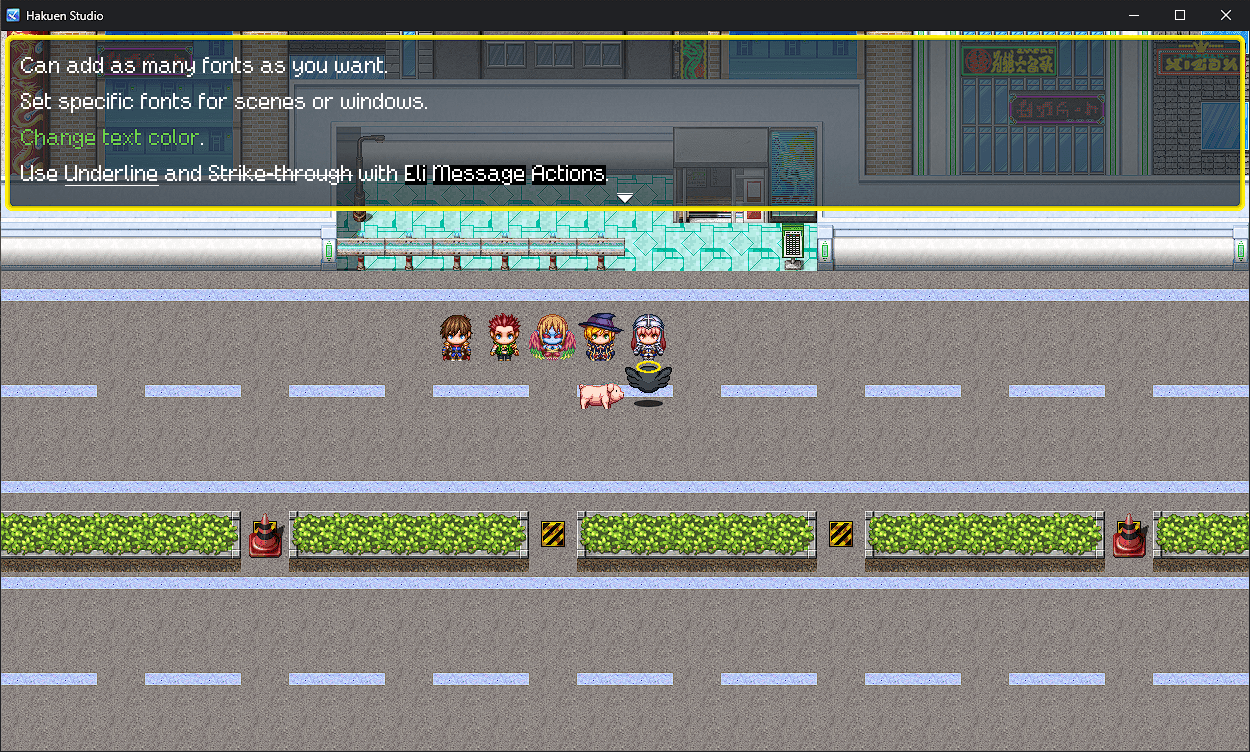
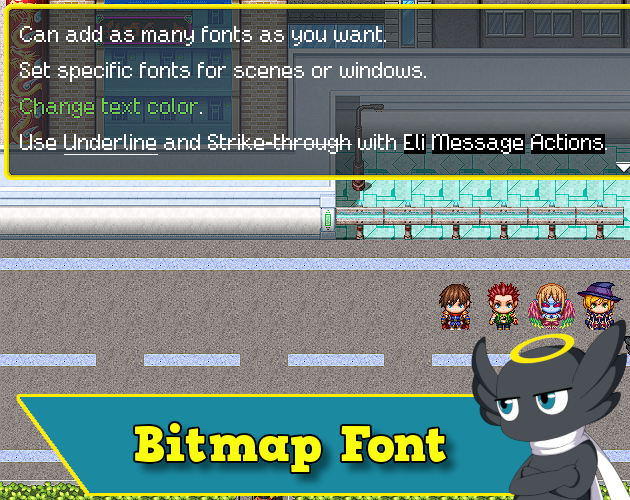
  • Can add as many fonts as you want.
  • Can add an outline to the font.
  • Set specific fonts for scenes or windows.
  • Change text/outline color. 
  • Increase/decrease the font size (\{ \})
  • Use Underline and Strike-through with Eli Message Actions. 

How it Works

Bitmap Font File

This is not the technical "Bitmap font", because it is created like a sprite sheet, in a png file using a single row.

The height of this png file will determine the size that a character can occupy on the lines. In another word, the default font size.

The default line height of the RPG Maker is 36. So try to keep under this(Unless you have another plugin that can change this value)

The width of the file doesn't matter. Can be any size, but you must create this in a way that each character will be on his grid. You don't need to worry about centering them on the grid, they just need to be inside. The plugin will auto-calculate the width of each letter.

One way to understand that you did it right is after you made your bitmap.png file, you divide its full width by the number of characters. This value must return a rounded number, with no decimals:

Full Width / Number of characters

  • 1400/60 = 23,3 // Something is wrong.
  • 1940/97 = 20 // Got it!

In the plugin parameters, there is a field where you can list all characters that this bitmap font has. So, they need to be in the same order that your bitmap is.

Outline Font File

If you are using an Outline Font File, the outline image must use the same width, height, character count, and character order as the Main Font File. The plugin uses the same character source data for both images. The outline image is drawn over the main image. Because of that, build the outline image with the same grid and transparent areas needed to let the main font image appear correctly.

Save file

As soon as the game starts, the plugin will scan all the fonts from the plugin parameters and check if they are attached to any window, sprite, or scene. If they do, they will register this on the save file. And will use this register to find where it has to apply a font. 

You can change that with plugin commands inside the game, like setting a new font for the Window_MenuCommand or making that window not use any font at all, so it can use the default font. The only exception to that is the Scene_Title and his display objects. They will always be set according to the plugin parameters.

Escape codes

Most default RPG Maker MZ escape codes should work normally after the text is processed by the window.

This plugin supports the default font size escape codes:

  • \{ → Increase the bitmap font size.
  • \} → Decrease the bitmap font size.

The \FS escape code is not supported.

Color escape codes can only recolor a bitmap font when the font Text Color or Outline Color is not set to “disable”. If Text Color is “disable”, the main bitmap font image keeps its original colors. If Outline Color is “disable”, the outline bitmap font image keeps its original colors.

For change the bitmap font face in the middle of a message, you should take a look at the EliMZ_MessageActions

Plugin Parameters

Build Bitmap File 

When this parameter is true and the game is running in test play, the plugin reads each configured bitmap font image, calculates the source rectangle for each character, and creates JSON files inside:

  • data/BitmapFonts/

When this parameter is false, or when the game is not running in test play, the plugin reads the existing JSON files from that folder.

Use this parameter as true when you make any changes on the fonts inside the plugin parameters. Honestly better keep it always true, unless you have a lot of bitmap fonts. In that case, only set it to true after you make any changes.

After the JSON files are created and the bitmap font images are not going to change anymore, set this parameter to false.

Note:

When Build Bitmap File runs in test play, the plugin clears the existing files inside data/BitmapFonts/ before writing the new JSON files. This helps remove old data from renamed or deleted fonts, but it also means you should not store unrelated files in that folder.

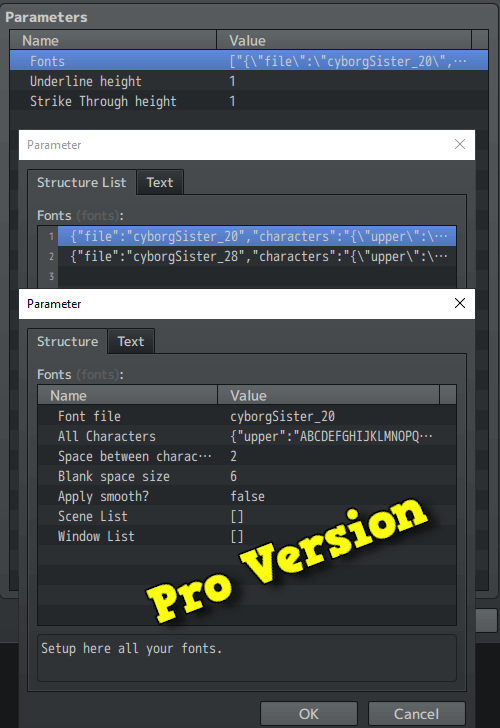
Fonts 

Here you can build all your bitmap fonts.

  • Main File → Choose the main png file to use as a bitmap font. The filename cannot have spaces.
    • Text Color → Choose the default text color for this bitmap file.
  • Outline File → Optionally, you can use another Bitmap.png file to use as an outline for your bitmap.
    • Outline Color → The default color for the outline bitmap file.

Optionally you can disable both color types using the “disable” option. This will make your font be rendered like you created on your image editor. This will also make RPG Maker not be able to apply any color on that font.

The “disable” option also blocks dynamic system colors for that part of the font. For example, if Text Color is “disable”, Sprite_Damage, Sprite_GaugeValue, and Sprite_Name cannot recolor the main bitmap font image through their system color options.

  • Wait for boot → If set this to true, the game will wait for that specific font to be loaded on scene boot.
  • Font Face → You MUST fill in this parameter. This works as an ID for the font, you will use this to reference this bitmap font on plugin commands or escape codes(Using EliMZ_MessageActions). It’s not case sensitive. Don’t use spaces. Don’t use numbers or special characters.
  • All Characters → Here you will list all the characters your Bitmap.png file has. They need to be in the same order that the Bitmap.png file has.
  • Space Between Characters → The blank distance in pixels between each character.
  • Blank Space Size → The distance in pixels that the “Space bar” will do.
  • Smooth → Set this to true if you want to smooth your bitmap font.
  • Scene List → Optionally set all the scenes that will use this bitmap font.
  • Window List → Optionally set all the Windows that will use this bitmap font. It has higher priority over the Scene List.
  • Sprite List → Optionally set all the sprites that will use this bitmap font. It has higher priority over the Scene List.
  • Use System Color → Some sprites, by default, can have their text color changed dynamically. Like when the actor has 1 Hp, or is dead, their HP Color value would change. As so, you have an option to set this value to true, to apply those changes. If you want to just have the default Bitmap Font Color, leave this parameter to false.

Note:

Font priority:

  • 1. Specific Window or Sprite assignment.
  • 2. Scene assignment.
  • 3. Default Font.

For the title screen, the plugin uses the plugin parameter lists directly. Sprite_GameTitle has priority over Scene_Title for the game title text.

Other

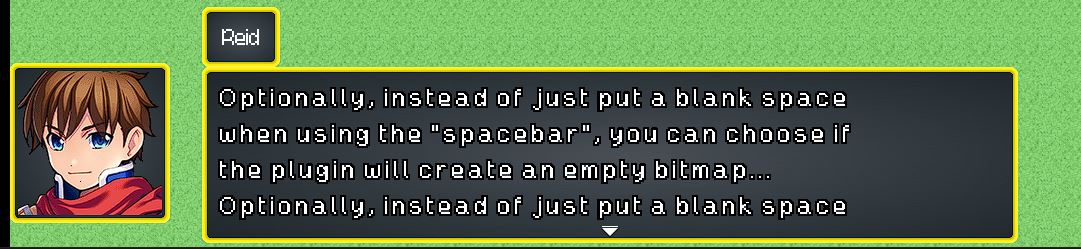
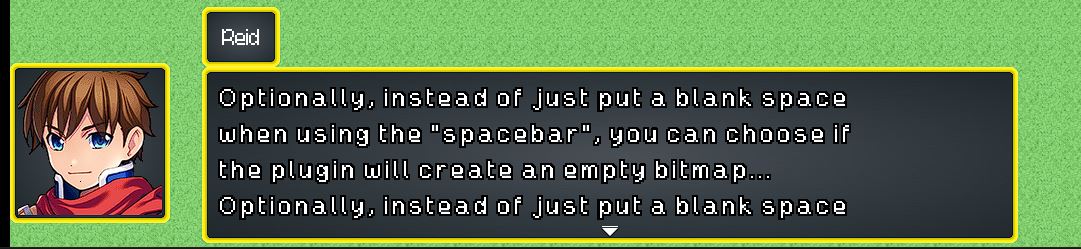
  • Add Space as Bitmap 
    • If true, the space character is created as an empty bitmap using Blank Space Size as its width. This allows text effects such as background, underline, and strike-through to include the space area when Eli Message Actions is used. 
    • If false, the space still moves the text position using Blank Space Size, but no bitmap is drawn for the space character.
  • Underline and Strike-Through Height → Set the height for these two features. But they will only work using Eli Message Actions.

Plugin commands

Change Font

Use this command to attach a bitmap font to one or more windows, scenes, or sprites.

  • Font Face / Index → You can use either the font index, starting at 0, or the Font Face. It is not case sensitive. Spaces are ignored.
  • Scene List → Scenes that will use this font.
  • Window List → Windows that will use this font.
  • Sprite List → Sprites that will use this font.

Reset Font

Use this command to remove saved fonts from specific windows, scenes, or sprites. After a specific assignment is removed, that container will use the next available rule:

  • 1. Its scene font, if any.
  • 2. The Default Font.

Reset All Fonts

Use this command to clear all saved fonts from windows, scenes, and sprites. This command keeps the current Default Font value.

Change Default Font

This command lets you change the Default Font index, which by default is the first one(0). 

Optionally, let you also reset all fonts like the plugin command “Reset All Fonts”.

Restore Plugin Parameter Defaults

This will refresh the save file by going into the plugin parameters and attaching each font to its containers again(sprites, windows, or scenes).

Compatibility

Eli Timer

If you set a font for the game timer and you are using Eli_Timer, the text color priority is from Eli_Timer.

Visu Core Engine

Bitmap Font messed up

You need to go into the plugin settings for Core Engine, change Quality of Life Settings, then scroll down to the bottom to change "Font Width Fix" to "false" and it'll fix some text issues.

Bitmap font not showing on Actor Name inside battle

I don’t know why. My guess is that Visu probably changed the way Sprite_Name is drawn. As so, if you want to fix this issue, set to true the plugin parameter on the Bitmap Font plugin:

  • Visu Core Engine Battler Name Compatibility

What this will do is restore the Sprite_Name.prototype.redraw function to the default code on the RPG Maker. I can’t say if this will affect any other Visu plugins. But that fixed the issue.

How To Use | Terms of use | Sample Project

StatusReleased
CategoryTool
Rating
Rated 5.0 out of 5 stars
(13 total ratings)
AuthorHakuen Studio
Made withRPG Maker
Tagsbitmap-font, hakuen-studio, mz, No AI, pixel-font, pixel-perfect, plugins, RPG Maker, RPG Maker MZ, rpg-maker-plugin
Average sessionA few seconds
LanguagesEnglish
ContentNo generative AI was used

Purchase

Buy Now$8.00 USD or more

In order to download this RPG Maker Plugin you must purchase it at or above the minimum price of $8 USD. You will get access to the following files:

MZ - Bitmap Font Pro 2.5.0 10 kB

Development log

View all posts